I. Product Overview
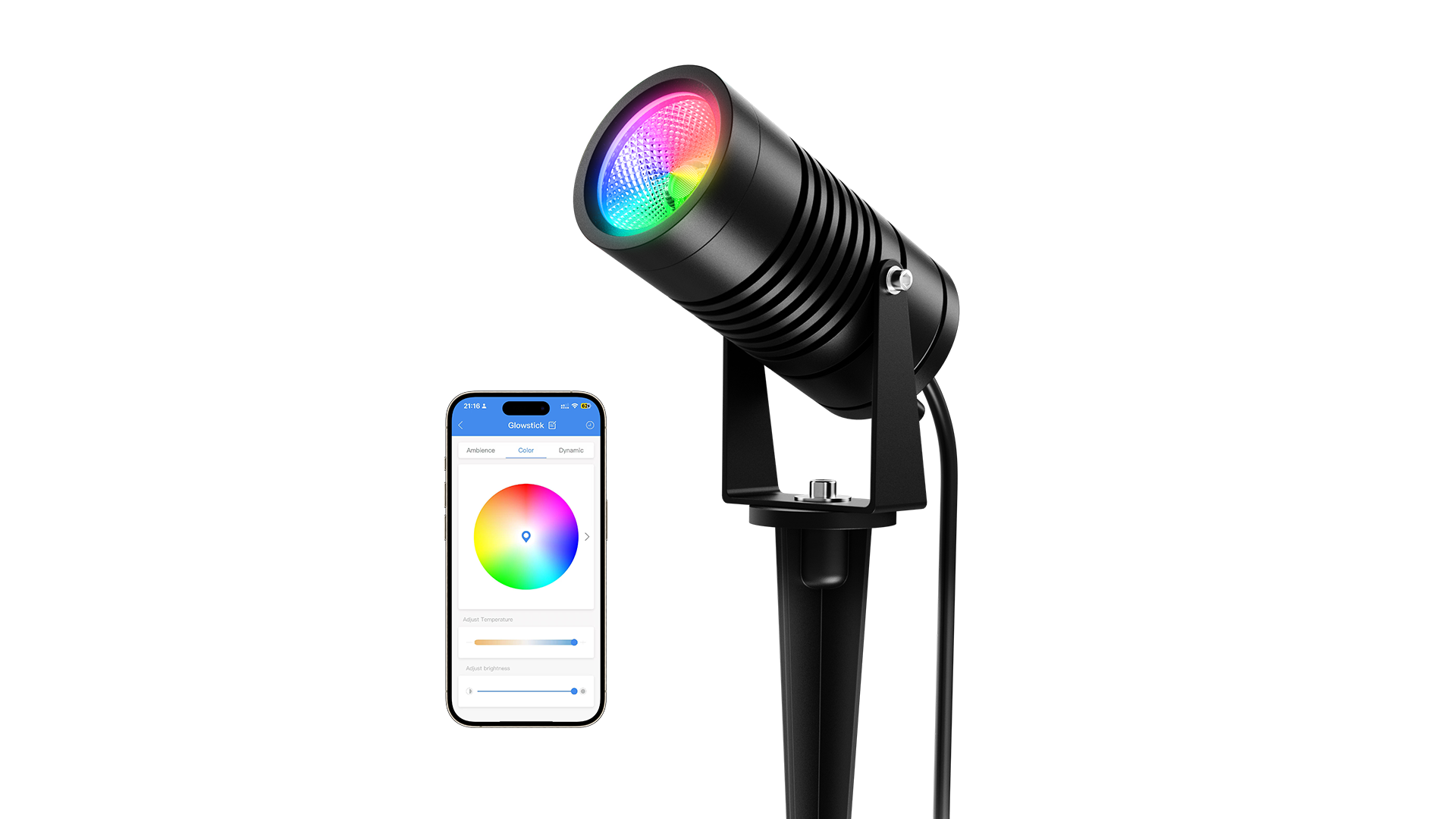
TakThree smart glow sticks products are RGBCW five-way dimming and color-tuning light fixtures based on the Bluetooth MESH communication technology protocol.
The main feature of the products is that multiple products can be combined for use, allowing for synchronized color changes. They are suitable for small concerts, family gatherings, and festival celebrations. They can be controlled via the accompanying remote control and music panel, or smart devices such as smartphones can be used to achieve group control, mood settings, scene control, and more (you need to scan the QR code in the manual, or search for “MG Light” in the APP store to download the control APP).
 |  |
| ▲Apple Store, Google Play Store | ▲Apple Store, Official website |
For specific usage methods, please visit the link: https://cwrgb.com/faq
II. Configuration Guide
1. Device Networking:
This device needs to be connected to the network via the MG Light mobile app. After powering on for the first time, use “+” to add the device. The light will flash after connecting to the network and then turn warm white, indicating successful addition. (Please refer to the APP User Guide for details)
2. Factory Reset:
Method One: Power Cycle Operation
a. Power the device on and off 4 times continuously.
b. During each operation, you need to power off immediately after the light turns on, and wait 3 seconds after the light turns off before powering on again.
c. After the fourth power-on, when the light’s cool white light flashes 2 times alternately, it means the factory settings have been successfully restored.
d. After resetting, the light can be reconnected to the network (the networking process is also an encryption process to prevent others from controlling it).
Method Two: Long Press the Function Key, If the product has function buttons.
Long pressing the function key for 10 seconds can also directly restore factory settings.
Recommendation:
It is recommended that the number of lights networked in each area does not exceed 50.
III. APP Usage Guide
1. Downloading the Magic Light Application
Search for “MG light” in the App Store or Google Play, or scan the QR code above to download the application.
Note: The application requires a smartphone compatible with Android 4.4 or higher, iOS 8.0 or higher (iPhone 4S or higher), and Bluetooth 4.0 or higher.
Note: Please enable Bluetooth and grant the application the required permissions when launching it. (Android phones require location permissions to be enabled when turning on Bluetooth.)
2. Finding and Adding New Light Fixtures
Open the application, click the “+” in the upper right corner, and then click “Search” to find new light fixtures. If there are many light fixtures, you can repeat the search operation multiple times. If a light fixture has been added before, it needs to be restored to factory settings before searching again.
Note: The process of adding a new light fixture is a process of encryption using your mobile phone, so others cannot control your light fixtures.
3. Connecting Your Lights to Magic Light
After finding the light fixtures, you need to click “Stop Search“, check the light fixtures you want to network, and then click the “√” or “Add” button in the upper right corner.
4. Adjusting the Light’s Color/Brightness/Change Rate
Click the blank area of the light fixture icon to enter the advanced dimming page to adjust the lighting.
5. Instructions for Using the Magic Light Application to Control Lights
a. Click “Group“, long press the control bar to add/set/delete light groups. Here, you can modify the name of the group and add multiple lights to the same group for better lighting control. You can create 8 different groups at the same time, and different groups can contain the same lights.
b. Click “Scene“, long press the bar to add/set/delete scenes. Similar to groups, here you can modify the name of the scene and add several lights to the same scene. The scene function allows you to arrange multiple lights or light groups (each with its respective lighting mode) into the same scene to adapt to different lighting needs and occasions.
c. Click “Music” to open the music function interface. Click “Follow Music“, you can play music from your phone’s playlist and sync the lights to your favorite music. In “Follow Microphone“, the lights will adapt according to the reception of the phone’s microphone. (Note: Magic Light can only access your local music library, so you need to download the songs to your phone.)
6. Click “Ξ” in the upper left corner to get more applications and instructions on how to use the application.
IV. Specifications
| Specification | Parameter | Specification | Parameter |
| Product Model | UBT-RGBCW-L1 | Color Temperature Range | 2700K-6000K |
| Charging Voltage | DC5V | Communication Protocol | Bluetooth Mesh |
| Maximum Power | 5W | Executive Standard | GB/T17743/GB7000.1/GB7000.202 |
| Light Color | RGBCW | Working Temperature | -20℃ ~ 50℃ |
| Max Power Per Channel | 5W, 5W, 2W, 2W, 2W | Relative Humidity | 20 ~ 90% RH |
For product suggestions and inquiries about usage issues, you can log in to the official website or community to contact us.
Official Website: https://takthree.com
Community: https://cwrgb.com